
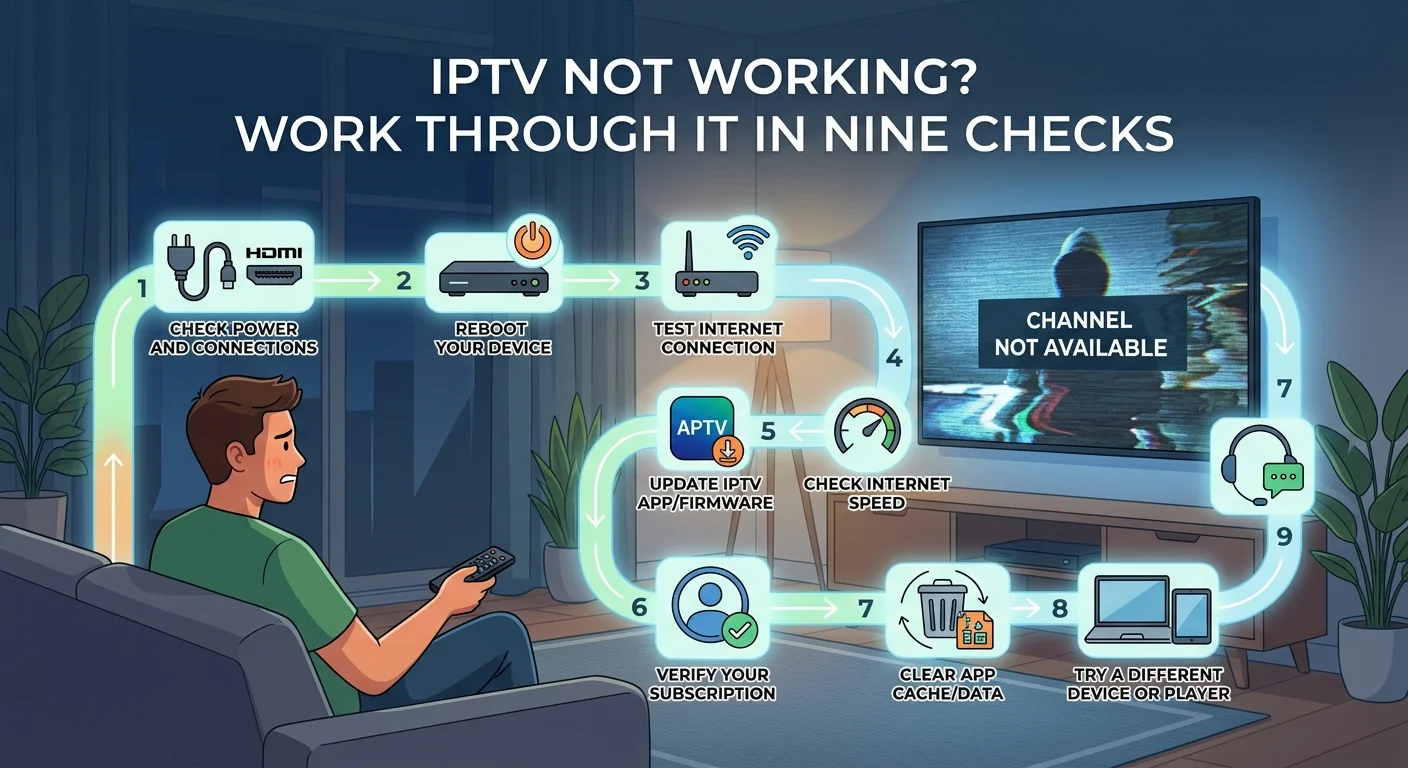
IPTV not working? Work through it in nine checks
"It's not working" covers at least eight different faults, and they have almost nothing in common. Nothing playing at all is a completely different problem from one channel breaking up, which is different again from everything failing after 8pm. This guide is a triage: three questions that halve the field, then the specific route for each symptom. Most people find the answer here in under five minutes, without contacting anyone.
Start here: three questions
Answer these before touching a setting. They eliminate more possibilities in thirty seconds than an hour of random fixes.
- Is it everything, or one channel? Everything points at your account, your connection or your device. One channel points at that specific stream — and nothing you change at home will affect it.
- Is it one device, or all of them? If the living room television fails but a phone plays the same channel fine, the fault is in that device or its connection. If every device fails, look at your account or your broadband.
- Did anything change recently? A new router, a moved television, an app update, an expired subscription. Faults rarely appear from nowhere, and the thing that changed is usually the thing that broke it.
One test worth doing early. Turn off your home Wi-Fi on a phone, so it uses mobile data, and play the problem channel. If it plays perfectly, the fault is inside your home. If it fails the same way, the fault is upstream. That single test decides who can fix it.
Symptom 1: nothing plays at all
The app opens but no channel starts, or you get an authentication or login error. Work through these in order.
Has the subscription expired?
This is the most common cause of a total, sudden stop, and the one people check last. With a fixed-term subscription there is no automatic renewal to catch you — access simply ends on the day it ends. The app stays installed and looks normal; nothing plays. Check the expiry date you were given at activation before assuming anything technical is wrong.
Were the details entered correctly?
If this is a new setup, retype nothing. Copy and paste the username, password and server address from the original email rather than typing them, and check for a trailing space picked up during copying. Case matters. A single wrong character produces exactly the same error as an expired account.
Is the internet working at all?
Open something else on the same device — a browser, another streaming app. If that fails too, the problem is your connection, not your subscription. Restart the router, give it two minutes, and try again.
Is more than one device signed in?
Every plan allows a set number of simultaneous streams. If you are at the limit, the next device gets an error rather than a picture. An app left running in the background still counts, so close them properly on devices nobody is using — this catches people out constantly.
Symptom 2: it plays, but it stutters
The channel loads and starts, then pauses, catches up, pauses again. This is buffering, and it is a genuinely different problem with five possible causes ranked by likelihood. Rather than repeat it here, our guide to finding the real cause of buffering in one minute works through it properly.
The short version: run the mobile data test above. If the stream is smooth on mobile data, your home network is responsible, and Wi-Fi is by far the most likely culprit.
Symptom 3: one channel is broken, the rest are fine
Nothing you do at home will change this. A single stream is either up or it isn't, and that is the provider's side of the chain.
What is worth doing is confirming it properly before reporting: try that channel on a second device, and try a nearby channel in the same group. If the neighbouring channels work and this one doesn't on any device, you have a clean, useful report.
Sources drop, change format or degrade — it is routine. What matters is how quickly it comes back. Minutes to a few hours is normal. Still dead three days later is a different judgement about the service you are paying for.
Symptom 4: picture but no sound
Video plays perfectly and there is silence. Counter-intuitively this is rarely a volume problem — it is usually an audio format your device cannot decode, and the giveaway is that the picture is untouched.
Three things to try, in order: open the audio track selector during playback and step through the options, because many channels carry several tracks and the first can be empty; switch the player's audio decoding to software if it offers the choice; and turn off audio passthrough, which sends the sound untouched to a soundbar that may not be able to decode it.
If some channels have sound and others don't, that pattern confirms the format explanation rather than contradicting it.
Symptom 5: the programme guide is empty
Channels play but the guide shows nothing, or shows yesterday's schedule. The guide is a separate feed from the video, so it fails independently and it does not affect playback at all.
It usually needs a manual refresh, and sometimes a time zone correction. Our guide to fixing an IPTV guide that won't load covers the settings involved.
Symptom 6: the app crashes or won't open
The player closes itself, freezes on the splash screen, or refuses to launch. This is a device problem rather than a service one, and there is a sensible order to work through.
Clear the app's cache first — not its data, which would wipe your login details. Then check for a pending update, because an outdated player is a frequent cause of crashes after a device firmware update. Then restart the device fully rather than putting it to sleep. Reinstalling is the last resort, not the first, and you will need your details to hand afterwards.
If the same player keeps failing on a device that is otherwise fine, it may simply be the wrong player for that hardware — our comparison of IPTV player apps and which suits which device is worth a look.
Symptom 7: it works on one device but not another
This is the most informative symptom of all, because it rules out both the service and the subscription in a single observation. If a channel plays on a phone and not on the television, the stream is fine and the account is fine.
What differs is the device, its player, or its connection. Check the failing device's connection quality where it actually sits, not after carrying it to the router. Then check whether it is running a different player, or an older version of the same one.
One specific case worth knowing: if only high-resolution channels fail on that device while standard ones are fine, that is a decoding limitation in the hardware. Lower the resolution in the player. No amount of broadband will change it.
Symptom 8: it only fails at certain times
Everything is perfect at three in the afternoon and unreliable at nine in the evening. That pattern is load, and it has two possible sources: your own street, if you share a local connection, or the provider's servers.
The mobile data test separates them. If the stream is smooth on mobile data at 9pm while your broadband struggles, the congestion is local to you. If it fails both ways at 9pm and works both ways at 3pm, the capacity problem is upstream.
This is worth being precise about, because it is the one symptom that genuinely reflects on a provider. A service that behaves identically at 9pm and 3pm is doing the expensive thing properly.
The nine checks, in order
If you would rather just work down a list, this is the order that finds faults fastest.
- 1. Everything, or one channel?
- 2. One device, or all of them?
- 3. Is the subscription still within its term?
- 4. Does another app on the same device reach the internet?
- 5. Run the mobile data test.
- 6. Are you at your simultaneous stream limit, including apps left in the background?
- 7. Clear the player's cache, then check for an update.
- 8. Restart the device fully, then the router.
- 9. Note the time of day the fault appears, and whether it is consistent.
Steps 1, 2 and 5 do most of the work. The rest are for when those three don't settle it.
What doesn't help
Three things people try first that rarely change anything, and sometimes make it worse.
Upgrading your broadband. Beyond roughly 30 to 40 Mbps of steady throughput, extra headline speed adds nothing to a single stream. Consistency matters far more than the number on the bill — our guide to why faster broadband won't fix it explains where the limit actually sits.
Switching on a VPN. It adds encryption overhead and a longer route, which is the opposite of what a live stream wants. If one is already running, turn it off before diagnosing anything.
Reinstalling the app immediately. It wipes your setup, costs you fifteen minutes, and fixes a narrow set of problems that clearing the cache usually handles anyway.
How to report it so it gets fixed quickly
If you have worked through the above and the fault is upstream, a good report gets a fast answer. A vague one gets a round of questions.
Include: the exact channel name, the time and date it happened, whether it affects other channels, which device and player you used, whether a second device behaves the same way, and the result of the mobile data test. That last item alone saves an entire exchange.
Then judge the reply by the time to restore rather than by the apology. Ours is a seven-day guarantee for a reason: if a service cannot be made to work properly for you in the first week, you should not be stuck with it.
In short
"Not working" is eight different faults. Three questions separate them: everything or one channel, one device or all of them, and what changed recently. The mobile data test then decides whether the problem is yours to fix or ours.
Total failure is usually an expired subscription, a mistyped detail, or a stream limit already in use. Stuttering is buffering, and belongs in its own guide. Picture without sound is an audio format, not a volume control. And a fault that only appears in the evening is load — the one symptom that genuinely says something about the service you are paying for.
Frequently asked questions
A sudden and total stop is most often an expired subscription. With a fixed-term plan there is no automatic renewal to catch you, so access simply ends on the day it ends while the app carries on looking perfectly normal. Check your expiry date before assuming a technical fault, then check that no other device is already using your stream allowance.
Turn off Wi-Fi on a phone so it uses mobile data, then play the problem channel. If it plays perfectly, the fault is inside your home — most likely Wi-Fi. If it fails in the same way, the fault is upstream. The test takes thirty seconds and settles the question before anyone has to guess.
No. A single stream is either up or it is not, and nothing at your end changes that. Confirm it by trying the channel on a second device and testing a neighbouring channel in the same group, then report it. Judge the service on how quickly it comes back rather than on whether faults ever happen at all.
Usually an audio format your device cannot decode — the tell is that the picture is completely unaffected. Step through the audio tracks in the player, since many channels carry several and the first can be empty. Then switch audio decoding to software, and turn off passthrough if you send sound to a soundbar.
Not first. Clear the app's cache — not its data, which would delete your login details — then check for a pending update and restart the device fully. Reinstalling wipes your setup and costs you fifteen minutes for a narrow set of problems that clearing the cache usually handles anyway.
That pattern is load, from one of two sources: congestion on your local connection, or the provider's servers. Use the mobile data test at 9pm to separate them. If mobile data is smooth while your broadband struggles, the congestion is local to you. If both fail at 9pm and both work at 3pm, the shortfall is upstream.