
IPTV buffering: find the real cause in one minute
Search for this problem and you will find lists of seven fixes, ten fixes, twelve fixes — all of which invite you to try everything and hope. That is a poor way to solve anything. Buffering has five possible causes, and they are not equally likely. This guide gives you a sixty-second test that eliminates half of them immediately, then works through the rest in order of how often they are actually to blame, each with the specific symptom that identifies it.
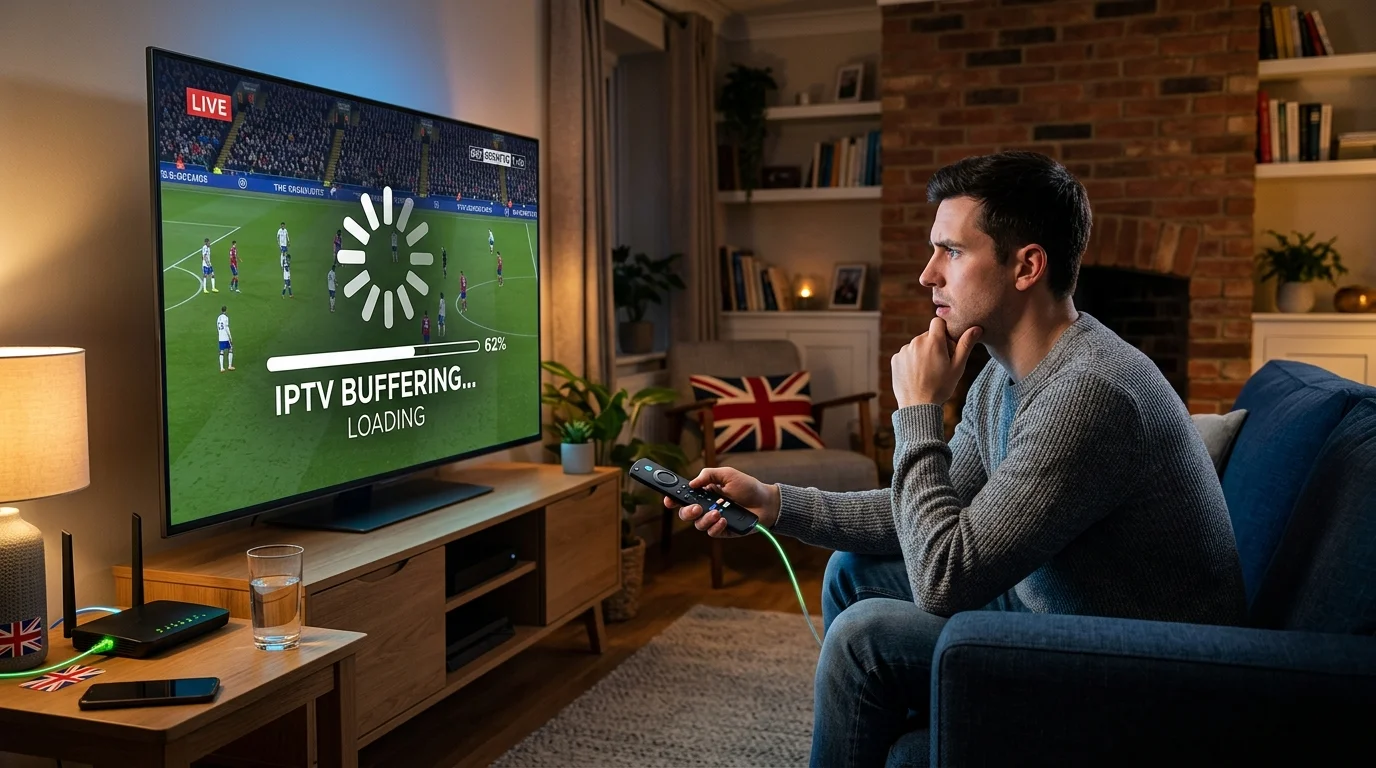
What buffering actually is
Worth thirty seconds, because the usual mental model is backwards.
Your player keeps a small reserve of video downloaded ahead of what you are watching — the buffer. Its whole purpose is to absorb brief interruptions so you never notice them.
Buffering is not the problem. It is the solution running out. The frozen picture and the spinning circle are what you see when that reserve empties because data stopped arriving fast enough.
This reframing matters, because it tells you what to look for: not "why is it buffering" but "where is the data being held up". There are only five possible answers.
Before anything else: two quick eliminations
Switch off any VPN. If you have one running, turn it off entirely and test again. A VPN routes your traffic through an intermediate server, adding latency and reducing usable bandwidth — the opposite of what a live stream needs. This is a genuinely common cause among people who activated a VPN months ago and forgot about it.
Restart the device and the router. Unplug both, wait thirty seconds, plug back in. It resolves a surprising share of problems and takes two minutes. Do it before you investigate anything, so you are not diagnosing a fault that has already gone.
The one-minute test
This is the single most useful thing in this guide, and almost nobody does it.
Play the same channel on a phone using mobile data, with home Wi-Fi switched off.
- It plays perfectly → the problem is inside your home. Causes 1, 2 or 3 below.
- It stutters there too → the problem is upstream. Causes 4 or 5.
Sixty seconds, and you have eliminated more than half the possibilities. It also prevents the most expensive mistake available here — buying new hardware, or switching provider, to fix something that was never their fault.
The five causes, in order of how often they are to blame
1. Your Wi-Fi — by a wide margin the most common
The tell: one device or one room is worse than others; the phone streams fine while the television struggles; it improves noticeably if you stand near the router.
Why it happens so often: the device doing the streaming is usually in the worst possible position. Streaming sticks plug into the back of the television, with the panel and often a wall bracket between their aerial and your router. Boxes get shut inside cabinets. Both are perfectly designed to receive badly.
The fixes, in order of effectiveness:
- Run an Ethernet cable to the main television. This removes the entire category of wireless problems permanently. If the device has no port, a powered Ethernet adapter costs a few pounds. It is the least glamorous advice available and by far the most effective.
- Move the device out from behind the screen with a short HDMI extension — often supplied in the box and thrown away. Covered in detail in our Firestick guide, though it applies to any HDMI device.
- Use the 5 GHz band rather than 2.4 GHz where the device is reasonably close to the router. Faster and far less congested.
- Check any repeater's position. A repeater must sit midway between router and target, where the original signal is still strong. Too far out, it rebroadcasts a weak signal and typically halves throughput.
2. Competing usage in your household
The tell: problems coincide with other people being home, or with nothing obvious at all — because backups and updates run silently.
Requirements add together. A 4K stream in the living room plus a Full HD stream in a bedroom exceeds 40 Mbps between them, before a games console update or a cloud backup joins in. Both of those like to run in the evening.
The fix: set consoles and computers to update overnight, pause cloud backups during peak viewing, and lower the main television's resolution if your connection is modest. Dropping the living room from 4K to Full HD frees more capacity than every other adjustment combined, and at normal viewing distance the difference is smaller than the numbers suggest.
3. Your device
The tell, and it is unmistakable: only high-resolution channels stutter, while standard ones are perfect. Possibly with the device running hot or its fan audible.
This is a decoding limitation, not a network problem. The device cannot process the video format in hardware and is attempting it in software instead. No amount of broadband will fix it.
The fix: lower the resolution in the player. A stable Full HD picture beats a stuttering 4K one every time. If the device is also generally slow, clear the player's cache, uninstall what you do not use, and restart it — devices with limited memory degrade over time.
4. Local network congestion
The tell: problems at the same hours every evening, affecting everything you do online rather than just streaming, and confirmed by the mobile-data test stuttering too.
This is your street, your exchange or your provider's capacity — everyone online at once. There is little you can do directly, though a wired connection makes you more resilient to it, and lowering the resolution reduces what you are asking for.
5. Your IPTV provider's capacity
The tell: problems recurring at the same hours, every time, across all channels, while everything is perfect at other times — and the mobile-data test stutters as well.
That pattern is specific. Handling peak demand means keeping spare server headroom that sits idle most of the week, and it is the largest ongoing cost of running an IPTV service — which makes it the first thing a very cheap provider cuts, as we explain in what gets cut to reach that price.
The fix: contact support, describe the pattern precisely — which hours, which channels, and the result of your mobile-data test — and ask whether an alternative server is available. A serious provider will engage with that. If the same pattern persists across several weeks, the answer is a different service.
Symptom to cause, at a glance
- One room is worse than others → Wi-Fi coverage.
- Only 4K channels stutter → your device's decoder.
- Everything degrades gradually when several screens are on → bandwidth shared across the household.
- One screen fails outright while others are perfect → simultaneous connection limit, not bandwidth. Usually an app left running elsewhere.
- Same hours every night, all channels, mobile data stutters too → upstream: network congestion or provider capacity.
- Live sport stutters but films are fine → normal and structural. Live has no buffer to build and sport carries far more movement. See our guide to live sport.
That fourth point deserves emphasis, because people confuse it constantly. Several screens degrading together is a bandwidth problem. One screen failing while the rest are flawless is a connection-limit problem. They have completely different solutions, and an app left open in the background — even with that television switched off — still occupies a connection.
Live versus on-demand
If films play perfectly and live channels do not, nothing is broken.
A film can build several minutes of reserve while you watch, so a brief interruption passes unnoticed. A live stream cannot — there is nothing to download ahead, because the picture does not exist yet. The player holds a few seconds at most.
So the same connection can be flawless on a boxset and marginal on a live channel. That is a structural difference, not a fault, and it is why every recommendation above matters more for live viewing.
What does not help
- Upgrading your broadband package. Beyond roughly 30–40 Mbps of stable throughput, extra headline speed contributes nothing to a single stream. A steady 25 Mbps outperforms an erratic 200 Mbps.
- Buying a new box when the cause is network or server-side. New hardware fixes decoding problems and nothing else.
- Adding a VPN. It adds latency and reduces bandwidth. It is a privacy tool, not a performance one.
- Restarting the router mid-programme. Several minutes offline for a problem that might have cleared in ten seconds. Save it for an interval.
- Changing provider before diagnosing. If the fault is your Wi-Fi, you will take it with you.
How to report it properly
If you do contact support, these four details turn a vague complaint into something solvable in minutes:
- Which channels, and whether standard-definition ones behave differently.
- Which hours, and whether it is consistent.
- The result of the mobile-data test.
- Wired or wireless, and which device.
A short video of the screen helps enormously — it usually lets a support team identify in seconds whether the cause is the server, the network or the device.
In short
Do not work through a list of fixes. Diagnose.
Switch off any VPN, restart everything, then run the mobile-data test. Perfect on mobile data means the problem is in your home — and it is your Wi-Fi far more often than anything else, so run a cable to the main television before you consider anything more expensive. Stuttering on mobile data too means it is upstream, and the pattern to look for is the same hours, every night, across every channel.
If you are still weighing up services, our guide to testing before you pay explains why a Saturday evening reveals what a Tuesday afternoon never will. More troubleshooting across our IPTV guides.
Frequently asked questions
The player keeps a few seconds of video in reserve. Buffering is what you see when that reserve runs empty because data is not arriving fast enough. The shortfall can come from your Wi-Fi, other devices in the house, your own device, local network congestion, or the provider's servers.
Play the same channel on a phone using mobile data with home Wi-Fi switched off. If it plays perfectly, the problem is inside your home. If it stutters there too, the problem is upstream with the network or the servers.
Rarely. Beyond roughly 30 to 40 Mbps of stable throughput, extra headline speed adds nothing to a single stream. Consistency matters far more than the advertised figure, and most buffering is caused by Wi-Fi rather than a lack of capacity.
That is a decoding limitation in your device, not a network problem. It cannot process the format in hardware and is attempting it in software instead. Lower the resolution in the player; no amount of broadband will fix it.
Because everything peaks at once: your household, your street, and the provider's servers. If it happens at the same hours every night across all channels while daytime is perfect, the cause is upstream rather than in your home.
No, it makes it worse. Routing your traffic through an intermediate server adds latency and reduces usable bandwidth, which is the opposite of what a live stream needs. Switch it off before diagnosing anything else.