
IPTV player apps: which one for which device
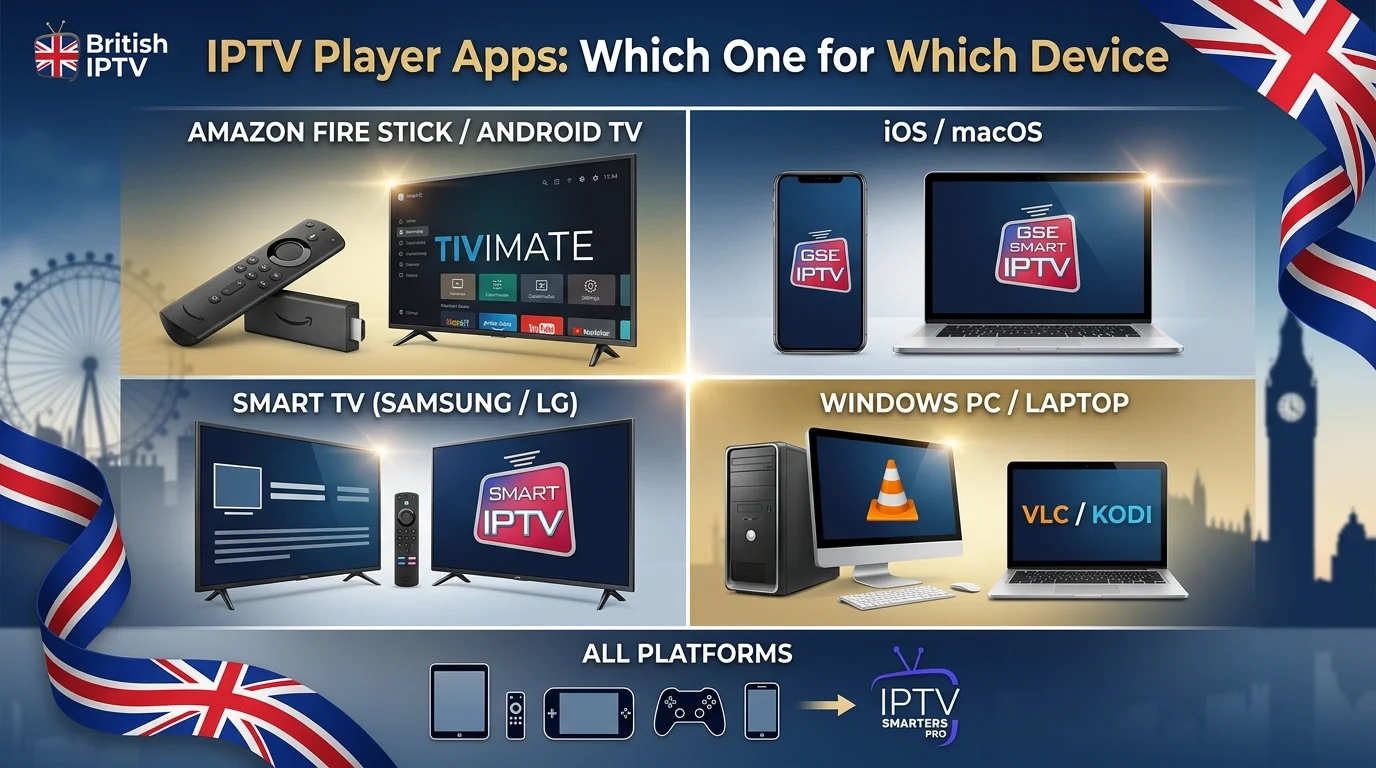
Search for the best IPTV player and you will find ranked lists that go out of date within months, and that ignore the one thing which actually decides your options: the device you own narrows the choice far more than any ranking does. An Apple TV can run a handful of players. An Android box can run dozens. A Samsung television can run whichever ones happen to be in its store this year. This guide explains what a player actually is, the five things worth judging one on, and what your realistic options are per platform.
First: a player is not a subscription
This confusion causes more wasted money than anything else in this market, so it is worth being blunt.
An IPTV player is a viewer, nothing more. It is to your subscription what a web browser is to the internet: it displays what it is given, and it supplies nothing of its own.
Three consequences follow, and all three are useful:
- No player provides channels. Any app claiming to give you thousands of channels by itself is describing something a player cannot do.
- Changing player does not affect your subscription. Install a different one, enter the same credentials, and everything works. Only your favourites list — stored locally — needs rebuilding.
- If a player disappears from an app store, you have lost nothing but an interface. This happens periodically, particularly on smart TVs and iOS, and it is an inconvenience rather than a crisis.
The five things worth judging a player on
1. Xtream login support
The single most important feature. A player that accepts Xtream credentials — server address, username, password — gives you self-organising categories and a proper browsable film and series library. One that only takes an M3U link gives you a flat list that can go stale.
An M3U link is a static playlist file; Xtream is a live connection to your provider's server, so changes at their end reach you without you reloading anything. Take Xtream whenever both are offered.
2. How it handles the programme guide
Rarely mentioned in comparisons, and something you use every single evening. A good player displays a clean now-and-next grid, refreshes reliably, and lets you correct the time zone yourself when the guide drifts.
3. Favourites and hiding
Can you build a short list of the channels you actually watch, and hide entire categories you never will? On a remote-driven interface this is the difference between two button presses and an endless scroll — and it is the feature that decides whether a setup is still used in six months.
4. The playback engine
Better players let you switch between decoders — hardware, software, or an alternative engine. If a channel stutters in one mode and plays perfectly in another, that setting is what fixes it. On modest hardware it can be the difference between usable and not.
5. It stays updated
Sources and formats change. A player that has not been updated in two years will gradually stop handling things correctly, however good it once was.
What does not matter
Interface skins and themes. Claimed channel counts, since the player supplies none. "Anti-freeze" branding, which describes nothing measurable. And ranked "top 10" lists, which reflect whichever apps were popular when the article was written.
By device: what you can realistically use
Fire TV Stick and Fire TV
The widest practical choice on a television. Amazon's own store carries some players, and because Fire OS is Android underneath you can install others by enabling app installs from outside the store and using a downloader utility.
The mechanics are covered in our Firestick guide, which also deals with the reception problem every stick has.
Android TV and Google TV boxes
Equally wide choice, with the advantage of a proper Play Store. Prefer the store version of a player where one exists — it updates automatically and survives a factory reset.
Samsung and LG smart TVs
The narrowest choice, limited to whatever each manufacturer's store carries for your model and year. Availability changes, and older sets sometimes lose access to new apps entirely.
Note that several smart TV players are free to install but ask for a small one-off activation payment to the app developer, using the device identifier your television displays. That is separate from your subscription — details in our Samsung and LG guide.
Apple TV, iPhone and iPad
Everything comes from the App Store, with no sideloading in the UK. The selection is smaller, apps occasionally disappear, and some charge a one-off purchase. In exchange, every option has passed review and setup takes about two minutes. See our Apple guide.
Windows and Mac
Desktop players exist and work well, though a computer is rarely anyone's main viewing device. More usefully, a general-purpose media player such as VLC will open a stream address directly — which makes it an excellent diagnostic tool, as below.
MAG and Formuler boxes
These are different: the interface is built into the box, so there is no separate player to choose. You give your provider the box's identifier and it authorises the device at its end.
Why we don't publish a ranked list
Two reasons, and both are practical rather than evasive.
Rankings date within months. Players are updated, withdrawn from stores, or change hands. An article confidently naming the top three in 2026 is misleading by 2027, and the internet is full of exactly that.
Your provider knows better than any article. Players differ in how they handle a particular server's connection method, guide format and category structure. A provider supports thousands of customers across all these apps and can see which produce the fewest problems on its infrastructure.
So the genuinely useful advice is: use the player your provider recommends, and if it does not suit you, judge alternatives against the five criteria above.
The diagnostic trick worth knowing
When something is not working and you cannot tell whether the fault is your subscription, your device or the app, test on a computer with a general-purpose media player.
Open VLC, use Open Network Stream, and paste the address your provider gave you. If the channel plays there, your subscription is active and your credentials are correct — so the problem is the app or the device, not the service. If it does not play there either, the issue is upstream.
It takes two minutes and saves a great deal of guesswork. It pairs well with the mobile-data test in our buffering diagnosis guide, which separates home network problems from provider ones.
Setting up any player, in the right order
- Install the player your provider recommends.
- Enter Xtream credentials rather than an M3U link, where both exist.
- Wait for the first load — channel list and guide take a minute or two, once.
- Check the time zone if guide times look wrong. Set it to GMT +0 for the UK.
- Build favourites and hide unused categories. Ten minutes, and it is the step that makes the difference.
- Turn off automatic app updates once everything works well, so nothing changes at an inconvenient moment.
Two warnings
Be wary of apps promising channels. A player displays what your subscription provides. An app advertising its own catalogue is either misdescribing itself or is not a player at all.
Install from a source you can identify. On Android, sideloading is a normal and legitimate mechanism, but it also means you are responsible for what you install. Use the address your provider supplies, or an official store, rather than a link from a forum.
In short
The player is a window, not the view. Your device decides most of your options, and within them the things worth judging are Xtream support, guide handling, favourites, decoder options and whether anyone still maintains it.
Use what your provider recommends, keep VLC on a computer as a diagnostic tool, and remember that swapping player costs you nothing but ten minutes of favourites.
Device-specific setup guides across our IPTV guides.
Frequently asked questions
No. A player is only a viewer, like a web browser. The channels come from your subscription. Any app claiming to supply thousands of channels by itself is describing something a player cannot do.
There is no single best one, and your device narrows the choice more than any ranking does. Use the player your provider recommends, because it knows which behaves best with its servers, then judge it on Xtream support, guide handling and favourites.
Yes. Your subscription lives with your provider, not in the app. Install a different player, enter the same credentials and everything works. Only your favourites list, which is stored locally, needs rebuilding.
Several smart TV and mobile players are free to install but ask for a small one-off activation payment made to the app developer. It is separate from your IPTV subscription and no provider can waive or refund it.
Xtream whenever both are offered. Categories organise themselves, the on-demand library appears as a browsable collection, and provider-side changes reach you without reloading anything.
A general-purpose media player such as VLC on a computer will open a stream address directly. It is a poor everyday interface, but it is an excellent way to confirm that a subscription is active before blaming a device or an app.