
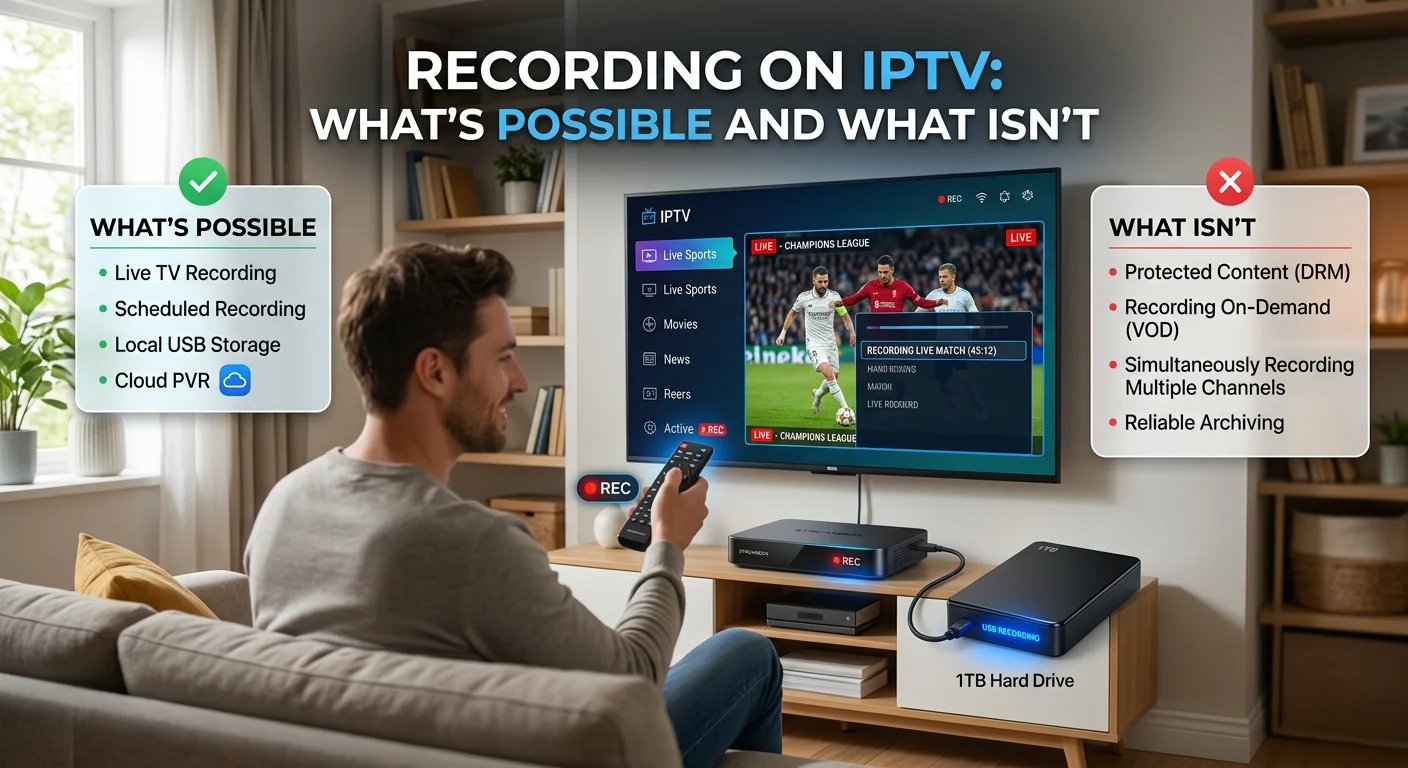
Recording on IPTV: what's possible and what isn't
Recording is the feature people assume works like a set-top box and then find behaves nothing like one. Three different things get called recording, only one of them is widely available, and the most common way it goes wrong has nothing to do with the recording itself — it's the storage underneath. Here is what your setup can actually do, where the files end up, and the two traps that cost people a recording mid-programme.
Three things called recording
They are genuinely different, and confusing them is why people expect capabilities their setup was never going to have.
- Local recording. Your player writes the incoming stream to storage on the device, or to a USB drive attached to it. This is the version most people actually have, and everything below concerns it.
- Cloud recording. The provider stores it for you, so nothing lands on your device. Rare in this market, for a reason we come to.
- Timeshift. Pausing or rewinding the channel you are watching right now. It uses a temporary buffer that is discarded when you change channel — nothing is kept.
Timeshift is the one most players offer. Local recording is common but not universal. Cloud recording is the exception.
Why cloud recording is rare
Worth explaining, because people assume its absence is stinginess. Cloud recording means storing a separate copy per customer, kept for as long as they want it.
That is a fundamentally different cost from catch-up, where one retained copy of a channel serves everybody. Ten thousand customers each keeping twenty hours of Full HD is roughly 450 TB — held indefinitely, growing continuously, and used by a small fraction of subscribers.
Which is why most IPTV recording happens on your own storage. It is not a limitation anyone chose lightly; it is the only version of the feature that adds up.
What you need for local recording
Three requirements, and the second is where most setups fall over.
1. A player that supports it
Support varies enormously between apps, and it is not a headline feature so it is easy to miss. Some players record with a single button, some schedule from the guide, and some do neither. Check before assuming, using our comparison of IPTV player apps and which suits which device.
2. Somewhere to write it
This is the real constraint, and the numbers are not kind. A recording is stored roughly at the bitrate it arrives, so:
- HD — about 1.4 GB an hour.
- Full HD — about 2.3 GB an hour, so a two-hour film is around 4.5 GB.
- 4K — about 9 GB an hour, so a two-hour film is around 18 GB.
Now compare that with a streaming stick, which typically has around 5 GB genuinely free. That is a little over two hours of Full HD, or under forty minutes of 4K — one film, and the device is full.
3. Enough spare capacity to keep working
Which leads directly to the first trap.
Trap one: recording is a common cause of crashes. A device with almost no free storage does not warn you — it starts failing updates, dropping guide data and closing apps unexpectedly. If your player began misbehaving shortly after you started recording, the recordings are almost certainly the reason. Our guide to what to clear when an IPTV app keeps crashing covers the symptoms.
Using a USB drive, and the 4 GB trap
Most Android boxes have a USB port, and many streaming sticks accept one through an adapter. That solves the capacity problem — but only if the drive is formatted correctly.
A drive formatted as FAT32 cannot hold a single file larger than 4 GB. Recording carries on happily until it hits that ceiling, then stops or produces a broken file. Because it is a limit on file size rather than free space, a 128 GB drive fails just as readily as a 16 GB one.
At the bitrates above, 4 GB is reached after roughly:
- three hours in HD,
- under two hours in Full HD,
- around twenty-five minutes in 4K.
Which is why people report recordings that "cut off near the end" of a film. Reformat the drive as exFAT and the limit disappears. Do that before recording anything you care about, since reformatting erases the drive.
Trap two: recording uses a stream
This one surprises almost everybody, and it is worth knowing before it happens.
A recording is a live stream being received and written to disc. As far as your plan is concerned, it counts exactly like watching. Record one channel while watching another and you are using two of your simultaneous streams, not one.
On a single-stream plan that means recording and watching are mutually exclusive: start a recording and the television will report the limit as reached. It is not a fault — it is the allowance working as designed.
If recording matters to you, factor it into which plan you choose rather than discovering it on the evening it counts.
Where recordings go and what format they're in
Most players save recordings as a transport stream file, usually with a .ts extension. That is the raw broadcast data written straight to disc rather than re-encoded, which is why the files are large and why recording puts almost no load on the device.
The upside is that nothing is lost in the process. The downside is size, and that .ts files are not always the friendliest format elsewhere — most desktop media players open them without complaint, but some phones and televisions are fussier.
Where they land varies by player: usually a recordings folder inside the app's own storage, or a folder at the root of the USB drive. Set the location deliberately in the player's settings rather than leaving it to default, especially if you have attached a drive — otherwise it will happily keep filling the device's internal storage while your USB drive sits empty.
Scheduled recording
Some players can record from the guide: find a programme, set it to record, and the app starts and stops at the right times. When it works it is the most useful version of the feature — and it depends entirely on two things being right.
The guide must be loaded, because that is what supplies the start and end times. And the time zone must be correct, or the recording will run an hour out. That second point catches British users specifically: a player left on UTC is accurate through the winter and an hour wrong from late March to late October under British Summer Time. Our guide to how catch-up works covers the same trap, since both features are driven by the clock.
One more practical detail: the device has to be awake. A scheduled recording will not start on a stick that has gone into deep sleep, and some players stop recording if the app is closed. Test a short scheduled recording before relying on one for something that matters.
A short checklist before you rely on it
- 1. Confirm your player actually supports recording, not just timeshift.
- 2. Check free storage, and set the save location to a USB drive if you have one.
- 3. Make sure that drive is exFAT, not FAT32.
- 4. Check your plan has a spare stream if you want to watch while recording.
- 5. For scheduled recordings, verify the guide is loaded and the time zone is UK local.
- 6. Do a ten-minute test recording and play it back before trusting it with anything important.
What it can't do
Three honest limits.
Not every stream will record cleanly. Recording works by writing what arrives, so a stream that stutters produces a recording that stutters. It captures the fault along with the programme.
It is not a substitute for catch-up. Recording requires you to decide in advance; catch-up lets you decide afterwards. They solve different problems, and neither replaces the other.
What you keep is your responsibility. As with everything else on the service, it is for you to ensure you hold any rights needed for the content you are accessing and retaining in your own jurisdiction. That does not change because a copy is on your own drive.
In short
Three things get called recording. Timeshift is temporary, cloud recording is rare because storing a copy per customer does not scale, and local recording — writing to your own device or a USB drive — is the version most people have.
Storage decides almost everything. Full HD costs about 2.3 GB an hour, so a streaming stick with 5 GB free holds one film, and a nearly full device starts crashing apps rather than telling you. Use a USB drive, and format it exFAT: FAT32 cannot store a file over 4 GB, which is under two hours of Full HD and is why recordings mysteriously stop before the end.
And remember that a recording consumes one of your simultaneous streams. On a single-stream plan, recording and watching cannot happen at once. Other faults are covered in our guide to working out which problem you actually have.
Frequently asked questions
Usually yes, but it depends on your player rather than the service. Most recording in IPTV is local — the app writes the stream to your device or an attached USB drive. Support varies widely between apps, and some offer only timeshift, which lets you pause and rewind live but keeps nothing.
Roughly 1.4 GB an hour in HD, 2.3 GB in Full HD and 9 GB in 4K, since the stream is written as it arrives rather than re-encoded. A streaming stick with about 5 GB genuinely free therefore holds a little over two hours of Full HD, or under forty minutes of 4K.
Almost always a USB drive formatted as FAT32, which cannot hold a single file larger than 4 GB — under two hours of Full HD. It is a file size limit rather than a space limit, so a large drive fails just as readily as a small one. Reformat the drive as exFAT, remembering that this erases it.
Yes. A recording is a live stream being received and written to disc, so it counts exactly as watching does. Recording one channel while watching another uses two streams. On a single-stream plan the two are mutually exclusive, and the television will report the limit as reached — which is the allowance working normally rather than a fault.
The recordings have almost certainly filled the device. A device with very little free storage does not warn you — it fails updates silently, drops guide data and closes apps unexpectedly. Move the save location to a USB drive and delete recordings you have finished with.
A time zone problem. Scheduled recording takes its start and end times from the guide, so a player set to UTC rather than UK local time is correct through the winter and an hour out from late March to late October under British Summer Time. Check the time zone, and make sure the device is not asleep when the recording is due.