
IPTV app crashing? Clear this before reinstalling
Reinstalling is the first thing most people try and very nearly the worst. It wipes your login details, costs fifteen minutes, and fixes a narrow set of problems that something far quicker usually handles. Player crashes almost always come down to three causes — a corrupted cache, a device that has run out of storage, or a version mismatch after an update. Here is the order that fixes them, and the one step to leave until last.
The one distinction that matters
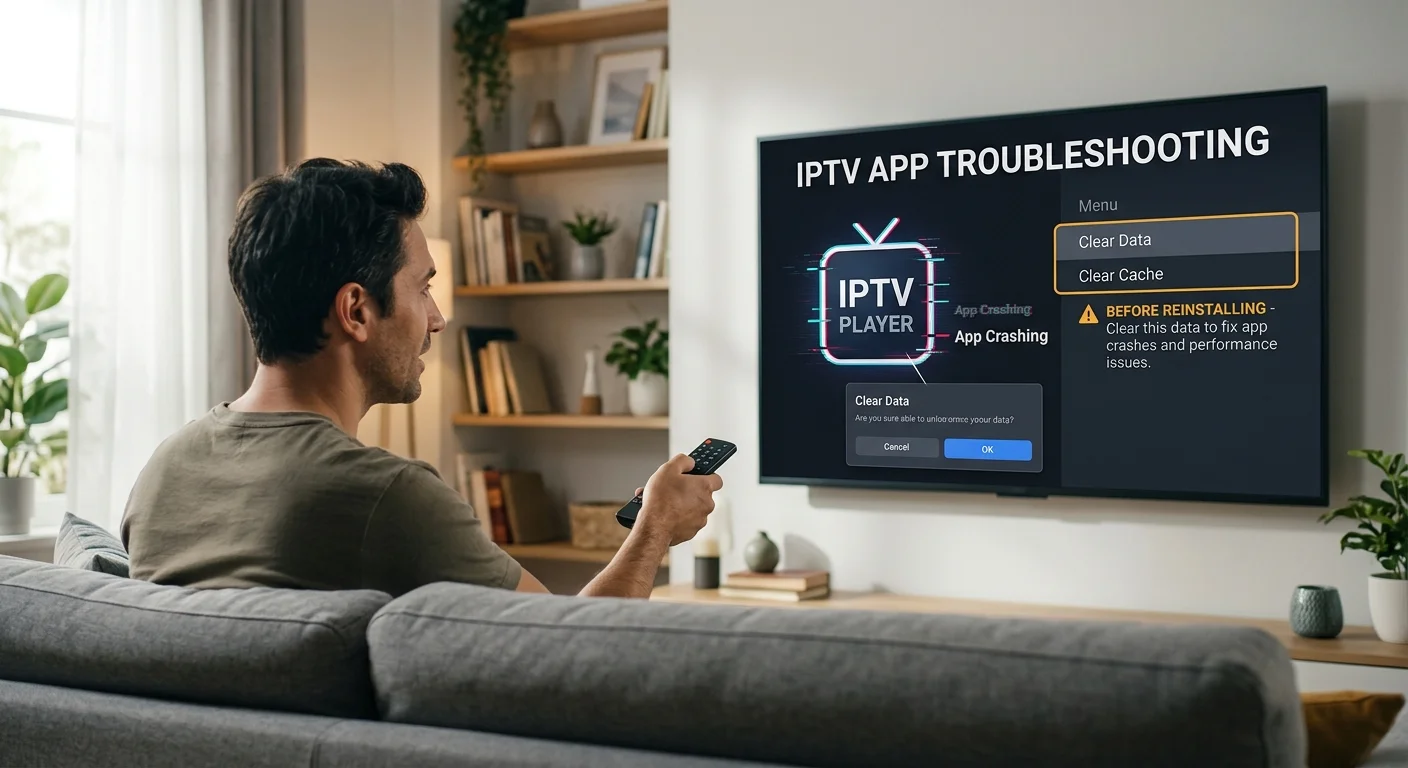
Before anything else, understand the difference between two options that sit next to each other in every settings menu and do very different things.
- Clear cache removes temporary working files — channel artwork, guide fragments, thumbnails. Your login details, favourites and settings are untouched. Nothing is lost. This is safe, and it fixes a surprising proportion of crashes.
- Clear data resets the app to how it was on the day you installed it. Your server address, username, password, favourites and every preference are gone. It works, but only do it with your activation email open in front of you.
People click the wrong one constantly, then have to hunt for credentials they never saved. Clear cache first, always.
Cause 1: a corrupted cache
An IPTV player writes a great deal of temporary data — thousands of channel logos, guide data covering several days, on-demand artwork. If a write is interrupted, by a power cut or a stream ending badly, part of that store can be left in a state the app cannot read.
The symptom is characteristic: the app opens and closes immediately, or freezes on the loading screen, or crashes at the exact same point every time — usually when it tries to load the channel list or the guide.
Clearing the cache resolves it. The app rebuilds what it needs on the next launch, which takes a minute or two, and your setup survives intact.
Cause 2: the device has run out of storage
This is the one people never suspect, and on streaming sticks it is extremely common.
A typical streaming stick ships with around 8 GB of storage, of which roughly 5 GB is actually available to you once the system has taken its share. An IPTV player with a full guide and a large cache can occupy a gigabyte or more on its own. Add a handful of other apps and the free space disappears.
When a device is nearly full it doesn't announce it — it just behaves badly. Apps crash on launch, updates fail silently, guide data won't download, and everything gets slower. The fault looks like a broken app and is actually a full disc.
Check this before anything else on a streaming stick. Look at the available storage in your device settings. If you have less than around 500 MB free, that is very likely your entire problem. Uninstall apps you no longer use — not the IPTV player — and clear caches across the board.
Keeping a gigabyte free as a matter of habit prevents most of this. It is the single most effective maintenance step on a stick, and our guide to setting up IPTV on a Firestick covers the rest of that device's quirks.
Cause 3: a version mismatch after an update
Two things update independently: your player app, and the device's own system software. When one moves and the other doesn't, they sometimes stop agreeing.
The tell is timing. If the player worked perfectly on Tuesday and crashes on Wednesday, and nothing changed in your setup, something updated overnight — usually the device rather than the app, because system updates install themselves quietly.
Check for a pending app update first, since developers generally respond quickly to a system change that breaks their software. If the app is already current and still failing, the practical answer is a different player: support for older hardware varies enormously between them, which our comparison of IPTV player apps and which suits which device goes into.
The order to work through
Each step is more disruptive than the last. Stop as soon as it works.
- 1. Force stop the app. Not just closing it — force stop, in the device's app settings. This clears its memory state and costs nothing.
- 2. Clear the cache. Safe, reversible, and the fix for a large share of crashes.
- 3. Restart the device fully. Pull the power for thirty seconds rather than using sleep. Sleep does not clear memory.
- 4. Check free storage. Under 500 MB on a stick is a problem in its own right.
- 5. Check for an app update, then check whether the device itself has a pending system update.
- 6. Clear data — only with your login details to hand. This resets the app without removing it.
- 7. Reinstall. Last resort. It rarely achieves anything that step 6 didn't.
Steps 1 to 3 take about two minutes together and resolve most cases. Step 4 catches the ones that keep coming back.
Where to find these settings
The wording differs by device, and on one platform the options barely exist at all.
Streaming sticks and Android boxes
Settings, then applications or apps, then manage installed applications. Select the player and you will find force stop, clear cache and clear data together, with the storage figure shown alongside. This is the most complete set of controls of any platform.
Smart televisions
Most Samsung and LG sets give you far less. There is often no cache option at all — the practical equivalent is removing the app and installing it again, plus a full power cycle of the television, which on many models means unplugging it for a minute rather than using standby. Our guide to IPTV on Samsung and LG televisions covers what those platforms will and won't let you do.
Phones and tablets
On Android, settings, apps, storage, then clear cache. On iPhone and iPad there is no cache button; the nearest equivalent is offloading the app, which removes the program while keeping its data, then reinstalling it from the same screen.
Three things that look like crashes but aren't
Some faults get reported as crashes and need a completely different fix.
It closes only on certain channels. That is not the app failing, it is the device unable to decode that particular stream — usually a high-resolution channel on hardware that cannot handle it. Lower the resolution in the player. Clearing caches will not touch it.
It freezes rather than closing. A frozen picture with the app still running is generally a network problem, not a software one. That belongs in our guide to working out which fault you actually have.
It gets worse the longer you watch. That points at heat. A stick tucked behind a wall-mounted television, with no airflow, throttles itself and eventually becomes unstable. An HDMI extension lead that moves it out from behind the screen is a genuine fix, and a cheap one.
When it's the device, not the app
Sometimes the honest answer is that the hardware has reached its limit. Three signs point that way.
Other apps misbehave too, not just the player. The device was already slow before any of this started. And the problem recurs within days of every fix, rather than staying away.
Older sticks and budget boxes with small amounts of memory struggle with modern players carrying large channel lists. A lighter player sometimes buys another year — but if several apps are unstable, the device is telling you something. Our guide to choosing an Android box covers what to look for in a replacement.
Stopping it coming back
Three habits prevent nearly all of this recurring.
Keep a gigabyte free. Check storage every couple of months on a stick and uninstall what you no longer use. This is the big one.
Clear the cache occasionally, without waiting for a problem. Every month or two takes ten seconds and keeps the store from growing indefinitely.
Save your login details somewhere outside your email. A note on your phone, or a screenshot. It costs nothing now and removes all the pressure from step 6 later.
In short
Clear cache and clear data sit next to each other and are not the same thing. The first is free and safe; the second wipes your setup. Start with the first.
Crashes come from a corrupted cache, a device out of storage, or a version mismatch after an update. On a streaming stick, storage is the cause people miss most often — under 500 MB free will produce exactly these symptoms while looking like a broken app.
Force stop, clear cache, restart properly. Two minutes, and most crashes are gone. Reinstalling belongs at the end of the list, not the start.
Frequently asked questions
Clearing the cache removes temporary working files such as channel artwork and guide fragments, and leaves your login details, favourites and settings completely intact. Clearing data resets the app to the state it was in on installation, deleting your server address, username, password and every preference. Always try clearing the cache first.
Almost always storage. A typical stick has around 8 GB, of which roughly 5 GB is usable, and a player with a full guide and cache can take a gigabyte on its own. Below about 500 MB free, devices crash apps, fail updates silently and slow down generally. Check available storage before assuming the app is at fault.
Something updated overnight, usually the device's system software, which installs itself quietly. Check for a pending app update first, since developers respond quickly when a system change breaks their software. If the app is already current and still failing, a different player is the practical answer.
Not first. Reinstalling wipes your setup and rarely achieves anything that clearing data does not, and clearing data is itself a last resort. Force stop the app, clear the cache and restart the device fully — that takes about two minutes and resolves most crashes without losing anything.
Most Samsung and LG televisions offer no cache option at all. The practical equivalent is removing the app and installing it again, followed by a full power cycle — on many models that means unplugging the television for a minute, since standby does not clear its memory.
No. If it happens only on particular channels, the device cannot decode those streams — typically high-resolution ones on hardware that is not up to it. Lower the resolution in the player settings. Clearing caches and reinstalling will not change it.